How to Reset the Map on a Robot Vacuum (and Get a Better Map the Second Time)
Picture this. You rearrange the living room on Saturday. The couch moves to the other wall, the bookshelf slides over a few feet, and the whole space feels brand new. Then Monday morning rolls around....
-
0 comments
-
196
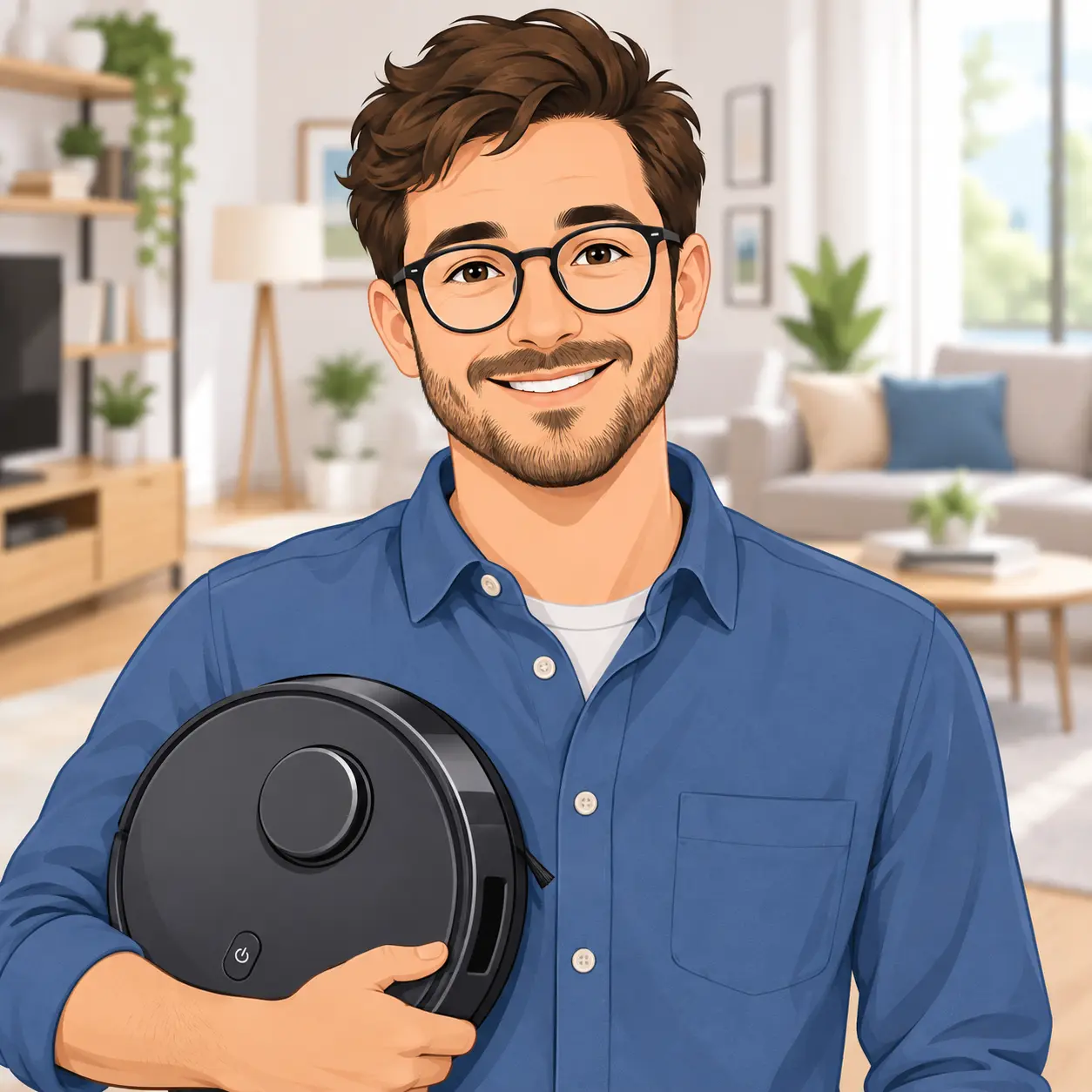
Picture this. You rearrange the living room on Saturday. The couch moves to the other wall, the bookshelf slides over a few feet, and the whole space feels brand new.
Then Monday morning rolls around. Your robot vacuum heads out on its usual run and spends twenty minutes nudging the back of the couch like a tourist who took a wrong turn. You open the app, and the kitchen has somehow merged with the hallway. There’s even a mystery “room” floating outside your front door.
Sound familiar? You’re not alone.
A scrambled map is one of the most common headaches robot vacuum owners run into. And here’s the good news: the fix is usually simple. Most of the time you don’t need a new robot, a support ticket, or a full factory reset. You just need to clear out the bad map and let your vacuum learn your home again, the right way this time.
I’ve spent a lot of time digging through official support docs, owner forums, and app menus for the big brands so you don’t have to. In this guide, I’ll walk you through exactly how to reset the map on a robot vacuum, brand by brand, plus the small tricks that help your robot build a clean, accurate map on the very next run.
Key Takeaways
- Resetting a map usually means deleting the saved map in the app, not factory resetting the whole robot.
- Try the gentle fixes first: restart everything, clean the sensors, and look for a “revert” or “retrieve” option that keeps your zones.
- Deleting a map wipes room names and no-go zones (and often room schedules), so screenshot your setup before you tap delete.
- For the remap, open every door, clear the floors, keep the dock in one fixed spot, and never pick the robot up mid-run.
- A factory reset is the last resort. It erases maps and settings, and on some models it even rolls the firmware back.
What “Resetting the Map” Actually Means
Let’s clear up some confusion first, because “reset” means different things in different apps.

When people ask me how to reset a robot vacuum map, they’re usually talking about one of three very different actions:
| Option | What it does | What you lose | Best for |
|---|---|---|---|
| Revert / Restore / Retrieve | Rolls back to an earlier saved version of the map | Recent changes (sometimes timers) | A map that was fine last week but got scrambled recently |
| Delete / Reset map | Wipes the floor plan so the robot builds a fresh one | Room names, no-go zones, virtual walls, room schedules | Moving, remodeling, moving the dock, or a badly broken map |
| Factory reset | Returns the entire robot to out-of-the-box condition | Maps, schedules, Wi-Fi, settings, sometimes firmware updates | Nothing else works, or you’re selling the robot |
Think of it like the GPS in your car. Reverting is hitting “undo” on a wrong turn. Deleting the map is downloading fresh maps because a new highway opened. A factory reset is wiping the whole device and setting it up like it just came out of the box.
Honestly, one pattern I see over and over is people jumping straight to the factory reset when a simple map delete (or even a revert) would’ve solved everything in ten minutes.
Who this guide is for
This guide is for you if you own a robot vacuum that saves a map of your home. That includes most LiDAR models and camera-based models with room-by-room cleaning in the app.
If you’ve got a budget robot that bounces around randomly and never shows a floor plan, there’s no saved map to reset. In that case, a simple restart or cleaning the sensors is about all you can do. (Curious which type you have? My guide to LiDAR vs. camera navigation breaks it down.)
Signs Your Robot Vacuum Map Needs a Reset
How do you know it’s time? Your robot will usually tell you. Just not in words.
Watch for these red flags in the app:
- Rooms are merged together or split in strange places
- Walls look doubled, shifted, or tilted at an odd angle
- “Phantom” areas show up outside your actual home
- Whole rooms get skipped that used to be cleaned
- The robot circles, wanders, or keeps trying to relocate itself
- The dock appears in the wrong spot on the map
There are also times when a reset makes sense even if the map looks okay:
- You moved to a new home
- You remodeled, added a room, or took out a wall
- You moved big furniture like a sectional, bed, or kitchen island
- You moved the charging dock
That last one catches a lot of people off guard. Most robots treat the dock like their “home base” for getting their bearings. Move it across the room, and the robot’s whole sense of direction can go sideways. In fact, Shark’s official support FAQ recommends deleting the map and re-exploring your home if you’ve moved large furniture or the dock.
Before You Hit Delete: Try These Quick Fixes First
Here’s a little insider tip: a lot of “broken” maps aren’t actually broken. The map is fine. Something else is confusing the robot.
So before you erase all that room-naming work, give these five minutes.
1. Restart the robot and the app
Force-close the app, power the robot off and back on, then reopen the app. Sync hiccups can make a perfectly good map look scrambled or even missing. It’s the classic “turn it off and on again” advice, and it works more often than you’d think.
2. Clean the navigation sensors
Dust on the laser turret, front camera, or cliff sensors can make your robot “see” walls that don’t exist. Wipe them gently with a dry microfiber cloth.
Ecovacs recommends regularly checking the side of the navigation sensor for dirt and wiping it clean. And if your robot is brand new, double-check the packaging. Ecovacs also warns that leftover protective film can peel back and block the laser sensors. (It sounds silly, but it happens.)
3. Look for a revert or retrieve option
This is the one most people miss. Some brands let you roll back to an earlier map without losing everything.
- eufy: On the X8 Pro series, eufy replaced the old reset option with a Revert Map feature that brings back the last edited version, including your no-go zones and virtual boundaries. eufy actually suggests trying Revert before deleting.
- Ecovacs: The Retrieve Map function in Map Management can bring back an earlier map that was created successfully. Just know your current timers and some map settings get disabled, so you’ll need to set them up again.
- Roborock and Dreame: Some models offer map backup or restore options. Poke around in Map Management on your specific model.
4. Check where the dock is sitting
Is your dock squeezed between the couch and a plant? Tucked into a cramped alcove? Blocked by a laundry basket? Robots need breathing room around the dock to orient themselves. Check your manual for the recommended clearance, then give it space.
5. Update the app and firmware
Mapping bugs get patched in updates all the time. Before starting from scratch, check the app store for app updates and look for a firmware update inside the robot’s settings.
Still seeing a mess? Okay. Now it’s time to reset the map.
Why a Fresh Map Beats Living With a Bad One
You might be thinking, “Is it really worth the hassle?” Let’s look at what a clean map actually does for you day to day.
- Accurate room cleaning. When rooms are divided correctly, “clean the kitchen after dinner” really means the kitchen, not half the kitchen plus a slice of the hallway.
- Better coverage. A correct floor plan helps the robot plan efficient paths, so fewer missed corners and less wasted battery.
- Fewer rescue missions. Robots with confused maps get stuck more often. A good map means less time pulling yours out from under the dresser.
- No-go zones that actually work. Zones sit on top of the map. If the map shifts, your zones drift too, and suddenly the robot is chewing on phone cables again.
- Smarter schedules. Room-based schedules only work if the robot knows which room is which.
It’s a bit like cleaning your glasses. You don’t realize how blurry things were until you see clearly again.

The Honest Pros and Cons of Resetting Your Map
Pros:
- Fixes merged rooms, tilted walls, and phantom areas in one go
- Gives your robot an accurate picture of your home as it is today
- Free, and you don’t need to call support
- Often quick (Shark’s official FAQ puts its mapping run at around 20 to 30 minutes)
- A nice excuse to rethink zones you set up in a rush on day one
Cons:
- You’ll lose room names, no-go zones, and virtual walls
- Room-based schedules may break and need rebuilding
- Bigger or trickier homes can take a few runs before the map is complete
- If you don’t fix the root cause (like dock placement), the new map can go bad too
- Deleted maps usually can’t be brought back
How to Reset the Map on a Robot Vacuum: The Universal Method
Every app looks a little different, but the process is surprisingly similar across brands. Here’s the general flow.
- Screenshot your current setup. Room names, no-go zones, carpet zones, schedules. Grab it all. Future you will be grateful.
- Send the robot to the dock and let it charge fully. A mapping run on a low battery is asking for a half-finished map.
- Open the app and find the map settings. Look for “Map Management,” “Manage Maps,” “Map Settings,” or a gear or three-dot icon near the map.
- Choose the right map. If you have a multi-floor setup, make sure you’re deleting the correct floor. (Ask me how many people wipe the upstairs map by accident.)
- Tap Delete, Reset, or Remove, then confirm.
- Prep your home using the tips in the next section.
- Start a mapping run. Depending on the brand, it might be called an Explore Run, Quick Mapping, or simply a full clean.
- Review and save the new map, then add back your rooms, zones, and schedules.
Now let’s get specific.
Brand-by-Brand: Where to Find the Map Reset Option
A quick heads-up before we dive in: apps get redesigned all the time. If a button is labeled a little differently on your phone, look for similar wording nearby. I’ve linked each brand’s official help page so you can double-check against your exact model.
iRobot Roomba
Roomba is a bit trickier right now because there are two different apps. According to the Roomba Home app listing, Roomba 100, 200, 400, 500, 700, and Mini series robots sold after March 2025 use the newer Roomba Home app. Older models use the iRobot Home (Classic) app.
For older Smart Map models (Classic app): iRobot’s support page on deleting an Imprint Smart Map explains that you tap the map icon and choose “Delete Map.” After that, send the robot out on a full clean or mapping run to build a new one.
For newer Roombas (Roomba Home app): The layout is different, so look in the map or home area of the app for map editing options. The app also includes built-in troubleshooting guides if you get stuck.
A couple of things worth knowing:
- Some older models, like the i3, i4, and i5, are limited in how many maps they can store. iRobot has a help article on Smart Maps for those models that answers the common “why can’t I add another map?” question.
- Basic Roombas without Smart Mapping don’t keep a saved floor plan at all, so there’s nothing to delete.
Roborock
Roborock makes this pretty painless. Their support center has a dedicated article on resetting a saved cleaning map in the app. On most models, you’ll find the option in the map settings or Map Management area of the Roborock app. Reset it, then start a new mapping run or full clean.
Big warning: Don’t confuse a map reset with a factory reset here. Roborock’s own factory reset article explains that a factory restore disconnects the robot from Wi-Fi, deletes scheduled cleanings and cleaning logs (including maps), and returns the firmware to the version it shipped with. You’d then need to update the firmware all over again.
Shark
Shark robots build their map with something called an Explore Run. According to Shark’s support FAQ for its RV2400WS series, the Explore Run takes roughly 20 to 30 minutes depending on your home’s size. When it’s done, the robot heads back to the dock, and the SharkClean app shows the map. If it looks right, you approve it to save.
To update the map anytime, Shark says you can delete it in the app and have the robot do a fresh Explore Run.
My tip for Shark owners: Update the SharkClean app before you delete anything. You don’t want to wipe your map and then discover the app won’t cooperate on the new run.
Ecovacs Deebot
In the ECOVACS HOME app, head to Map Management. For maps that look confusing, skewed, or overlapping, Ecovacs recommends deleting the maps in the app and remapping.
Before you do that, though, try the Retrieve Map option I mentioned earlier. If it brings back a good version, you’ll save yourself some setup time.
When you remap, Ecovacs suggests opening room doors as wide as possible so the robot doesn’t skip rooms. Simple, but it makes a real difference.
eufy
On many newer eufy models, the path looks like this: tap the gear icon on the robot’s main screen, go to Manage Map, then tap the three dots to either revert or delete the map. That’s straight from eufy’s official help page.
eufy has a few quirks that are worth knowing (and these are the kind of little-known details that save a lot of frustration):
- On the X8 series, if you want to delete a map that’s also your only map, eufy says you need to turn on Multi-Map Saving first, which is switched off by default.
- The L70 Hybrid stores only one map, and it can lose that map if you move the charging base. Even more surprising, eufy notes the L70 Hybrid needs at least one No-go or No-mop zone created, or it’ll build a brand-new map every time it cleans.
- According to that same page, the X8 series can save up to 5 maps, while the L35 series, LR30 series, and LR20 can save 3.
Dreame
In the Dreamehome app, map options live in the map editing and map management areas. Dreame keeps a whole Map-Editing help section covering room splits, merging rooms, multi-floor mapping, and renaming maps and rooms.
Dreame’s newer models also offer a lot of extra map detail, like furniture, carpets, and thresholds, which you can read about in their advanced map features guide. The flip side? That’s more stuff to rebuild after a delete, so those screenshots matter even more here.
How to Get a Perfect Map the Second Time
This is where most people slip up. They delete the map, send the robot out into a normal messy weekday, and end up with a map that’s just as bad as the first one.
Let me show you the difference.
Before: Bedroom doors are half-closed. There’s a laundry basket in the hallway, phone chargers on the floor, and the dog is following the robot around as it owes him money. The robot gets stuck under a chair, so you pick it up and set it down in the living room. The result? Missing rooms, jagged walls, and a map that’s confused from day one.
After: Every door is wide open. Floors are clear. Pets are in the yard. The robot starts from the dock, and nobody touches it until it’s back home. The result? Clean walls, all rooms captured, and a map that actually matches your home.
Here’s how to set up for the “after” version:
- Open every door all the way, including closets you want cleaned.
- Clear the floor. Pick up cords, socks, shoes, toys, and pet bowls.
- Tuck in dangling stuff like long curtains and blanket edges.
- Turn on the lights if you have a camera-based robot. Laser-guided models handle the dark fine, but camera models need to see.
- Keep pets and kids out of the way for the run.
- Start from the dock with a full battery.
- Don’t pick up or move the robot mid-run. If it gets stuck, free it gently right where it is.
- Use quick mapping mode if your robot has one. It skips the cleaning and just maps, which is faster.
- Watch out for big floor-level mirrors or glass doors. They can occasionally throw off laser sensors, so consider blocking the bottom edge during mapping.
- Be patient. Larger or oddly shaped homes may need two or three runs before the map looks complete.
Setting Everything Back Up After the Reset
Once the new map looks good, save it right away, then pull out those screenshots.
- Split and merge rooms so each space is its own room.
- Name your rooms the way your family actually talks (“Kids’ Room” beats “Bedroom 2”).
- Re-add no-go zones around pet bowls, cable clusters, and thick shag rugs.
- Mark carpet areas if your robot mops.
- Rebuild your schedules and test one room-based clean.
- Name floor maps clearly in multi-story homes. “Upstairs” is a lot easier than “Map 2” at 7 a.m.
When a Factory Reset Actually Makes Sense
So when should you go all the way? In my opinion, only in a few situations:
- The map keeps getting corrupted even after several careful remaps
- The robot won’t connect to Wi-Fi or the app throws constant errors
- You’re selling or giving away the robot (your floor plan is personal data, after all)
- The brand’s support team specifically tells you to do it
Before you do it, keep these warnings in mind:
- Maps usually can’t be recovered. When a Roborock owner asked on the official forum about getting maps back after a factory reset, a Roborock team member replied that a factory reset erases all maps and there’s no option to restore them.
- You’ll need to reconnect Wi-Fi and set up the robot in the app again.
- Firmware may roll back on some models, so check for updates afterward.
- Button combinations vary a lot by model. Always follow your manual instead of a random video.
I’ve put together a separate walkthrough on how to factory reset a robot vacuum if you truly need it. And if your issue is really a connection problem, start with my robot vacuum Wi-Fi troubleshooting guide instead.
Common Mistakes That Ruin a Remap
We’ve all been there. Here are the slip-ups that trip people up most:
- Deleting the wrong floor’s map. Double-check the map name before you confirm.
- Moving the dock again right after remapping. Pick a permanent spot first, then map.
- Judging the map after one run. Give complex homes a couple of tries.
- Skipping the screenshots. Rebuilding zones from memory is no fun.
- Mapping on a busy day. Guests, pets, and kids are basically moving obstacles.
- Ignoring dirty sensors. A dusty sensor can wreck even a perfect prep job.
If your robot still refuses to build a decent map after all this, my robot vacuum not mapping fixes article goes deeper into hardware and settings issues.
Is Resetting Your Map Worth 30 Minutes of Your Time?
Let’s be real. If your robot has been skipping the bedroom, ignoring no-go zones, or getting lost in your own hallway, you’re not really getting what you paid for. That’s frustrating.
Resetting the map is one of the easiest, free ways to get that “fresh out of the box” performance back. No new purchase. No long hold time with customer support. Just a bit of prep and some patience.
So here’s what I’d do if I were you: pick a quiet morning this week, grab your phone, take those screenshots, open the doors, and let your robot relearn your home. There’s a good chance you’ll wonder why you waited so long.
And if you do all this and your robot still struggles, that’s useful information too. It might be a sign it’s time to look at an upgrade, and my robot vacuum buying guide can help you pick one that fits your home.
Frequently Asked Questions
Will resetting the map delete my cleaning schedule?
Often, yes, at least for room-based schedules. Since those schedules are tied to rooms on the old map, they usually break or disappear when the map is deleted. Whole-home schedules sometimes survive, but it depends on the brand. Screenshot everything first just in case.
How long does it take a robot vacuum to remap a house?
It depends on the home and the model. Shark’s support FAQ puts its Explore Run at around 20 to 30 minutes. Bigger homes, lots of rooms, or cluttered floors can mean longer runs or a few passes before the map is complete.
Do I need to factory reset my robot to reset the map?
No. In almost every case, you can delete or reset the map directly in the app. A factory reset wipes much more than the map, including Wi-Fi settings and schedules, so save it for last.
Can I recover a map after I delete it?
Usually not. That’s why the revert or retrieve options are worth trying first. Brands like eufy and Ecovacs offer ways to roll back to an earlier map on certain models, but once a map is fully deleted or wiped by a factory reset, it’s typically gone.
Why does my robot vacuum keep making a new map every time?
The usual suspects are a moved dock, the robot being picked up and moved mid-run, a map-saving setting that’s switched off, or a quirk of a specific model. For example, eufy notes its L70 Hybrid will create a new map on every clean unless you add at least one No-go or No-mop zone.
How often should I reset my robot vacuum map?
Only when you need to; if your layout hasn’t changed and the map looks right, leave it alone. Reset it after a move, a remodel, big furniture changes, moving the dock, or when the map clearly starts getting scrambled.
Does every robot vacuum have a map to reset?
No. Basic models that navigate by bumping around randomly don’t save a floor plan. If your app never shows a map with rooms, there’s nothing to reset. Restarting the robot and cleaning its sensors are your best bets instead.
Final Verdict
Resetting the map on a robot vacuum is absolutely worth doing if your robot is skipping rooms, getting lost, or ignoring zones, or if you’ve moved, remodeled, or shuffled the dock. Start with the gentle fixes, use revert or retrieve if your robot offers it, and only delete the map once you’ve prepped your home properly. Save the factory reset for true emergencies. Do it right, and your little cleaner goes from lost tourist to local expert again.
Remember that robot nudging the back of the couch on Monday morning? It wasn’t broken. It was just working from an old map of a room that no longer existed. Give it a fresh start, and it’ll know every corner again.
Now I’d love to hear from you. Which brand do you own, and what finally fixed your map? Drop a comment below. Your tip might be exactly what another reader needs. And if this guide helped, feel free to share it with a friend whose robot is currently lost in their hallway.
Author


Latest Posts